
Silk Mobile
Table of Contents (Homepage)
- Overview
- Setting Up
- Getting Started
- How To
- Connecting Devices And Emulators
- Preparing Applications For Testing
- Managing Applications
- Recording Tests
- Working With Test Commands
- Adding Commands To Your Scripts
- Object Commands
- Click
- ClickCoordinate
- ClickIn
- ClickOffset
- Drag
- ElementGetProperty
- ElementGetTableRowsCount
- ElementListPick
- ElementListSelect
- ElementListVisible
- ElementScrollToTableRow
- ElementSendText
- ElementSetProperty
- ElementSwipe
- ElementSwipeWhileNotFound
- GetAllValues
- GetElementCount
- GetElementCountIn
- GetTextIn
- IsElementBlank
- IsElementFound
- IsFoundIn
- LongClick
- RunNativeAPICall
- SendWhileNotFound
- VerifyElementFound
- VerifyElementNotFound
- VerifyIn
- WaitForElement
- WaitForElementToVanish
- GetCoordinateColor
- DragDrop
- Application Commands
- Device Commands
- Web (Hybrid) Specific Commands
- Utilities Commands
- Monitoring Commands
- Configuration Commands
- ExtractLanguageFiles
- SetDefaultClickDownTime
- SetDefaultTimeOut
- SetDefaultWebView
- SetDragStartDelay
- SetInKeyDelay
- SetKeyToKeyDelay
- SetLanguage
- SetLanguagePropertiesFile
- SetShowImageInReport
- SetShowPassImageInReport
- SetShowReport
- SetSpeed
- SetThrowExceptionOnFail
- SetWebAutoScroll
- StartStepsGroup
- StopStepsGroup
- TextFilter
- Miscellaneous Commands
- Controlling Element Identification Rules
- Editing Test Objects
- Executing Test Scripts
- Report Of Executed Test
- Working From Code Environment
- Continuous Integration
- Layout Verification Tests
- Use Device Vitals Monitors
- Troubleshooting
- Terminology
Connect To Floating License Server
Step 1: Launch the application.
Step 2: Choose the option of Connect Floating license server.
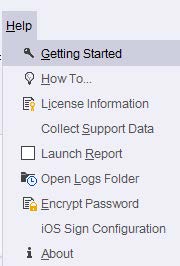
Step 3: If you can't open it, go to Help > License information > Connect Floating license server
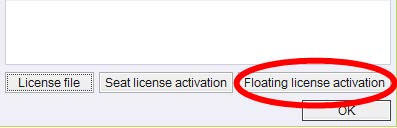
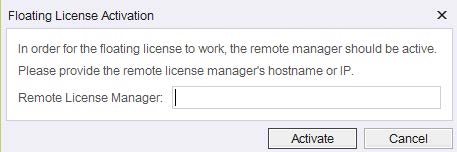
Step 4: Insert the IP of the floating license server and press the connect button.
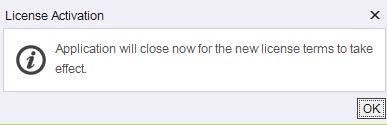
Step 5: Application will restart.
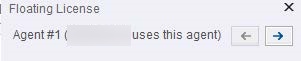
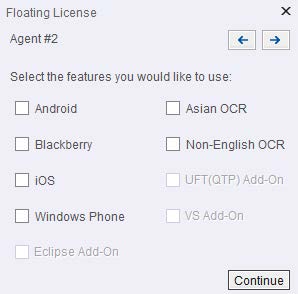
You will be presented with a floating license check box to insert the features you want to get from the floating server.
Notes:
-
Each agent will take seat from the floating license server.
For example, if you configured 3 agents with iOS license, it will grab 3 seats from the floating license server. -
You can have Executor add on capabilities by configuring more agents on the Floating license menu.
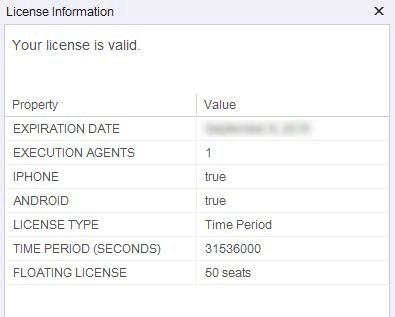
Step 6: Show HELP > License information window
Optional:
For users who want to launch it from the command line in order to avoid the Floating license feature box.
Run from command line (or from the testing framework):

The switch-skip-features-choose will just skip the floating license choosing box to grab all available seats from the floating license server for one port.
To have executor add on capabilities via the floating license server or if you want to choose specific features automatically via the floating license server please do the following:
Create a property file with the features you want to use.
It should be on the following format:
agents.count=(number of agents)
agent.1.port=(number of port)
agent.1.license=(feature),(feature),...n
and so on for the rest of the ports.
For example:
agents.count=2
agent.1.port=8889
agent.1.license=ANDROID
agent.2.port=8999
agent.2.license=WINDOWS_PHONE,IPHONE
Now afterwards, in order for the configuration to come into effect, you should run the application the following way:
silkmobile.exe -agents-properties-file=(properties file location)